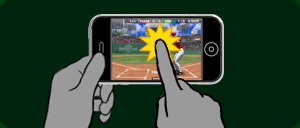
Tap & Flick
While holding your iPhone/iPod touch screen sideways, tap the screen in precise timing as the pitcher throws the ball.
Take note of the proper timing to hit the ball, which will be displayed as warning text when you swing and miss.
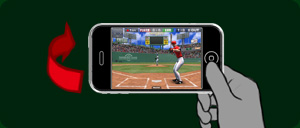
Shake
Lightly swing your iPhone or iPod touch held sideways with the proper timing when the pitcher throws the ball.
Take note of the proper timing to hit the ball, which will be displayed as warning text when you swing and miss.
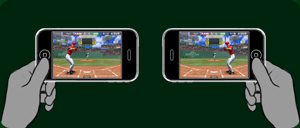
Under options, batters can select between right-handed and left-handed stances. When the right-handed stance is selected, hold the iPhone or iPod touch so that its top end is to the right. When the left-handed stance is selected, hold the iPhone or iPod touch so that its top end is to the left. Go to options to select the operation mode of your choice: "tap & flick" or "shake".
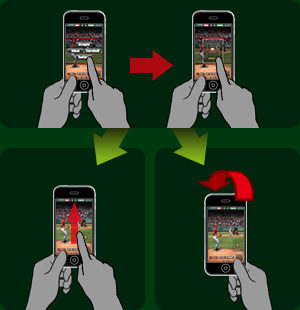
Tap & Flick
While holding your iPhone/iPod touch screen vertically, tap the screen to choose the type of pitch and pitching course, then flick the screen to throw the ball.
You have a choice of four different types of piches: fastball, curve, screwball, fork ball.
The ball velocity can be controlled by how fast you flick the screen.
Shake
While holding your iPhone/iPod touch screen vertically, tap the screen to choose the type of pitch and pitching course, then lightly swing your iPhone/iPod touch unit to throw the ball.
You have a choice of four different types of piches: fastball, curve, screwball, SFF.
Control the ball speed by the intensity of how gently you swing the iPhone/iPod touch unit.
Go to options to select the operation mode of your choice: "tap & flick" or "shake".
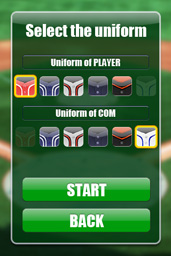
Before the start of the game the player uniforms can be selected from among six types. However, the same uniforms cannot be selected for both the player and COM teams. Tap the "Start Game" button displayed at the uniform selection screen to begin the game.
As with a real baseball game, the player and COM opponent will switch between batting and pitching after three outs and decide the winner by fighting it out over the number of innings set in the options. Settings for the number of innings, extra innings and called games can be changed in the options. When extra innings are set off in the options, a draw will result if both teams' scores are tied at the end of the final inning. Please note that if you quit a game midway via the pause menu, the next time you play the game will start from the beginning.
Various settings can be configured under options.